> ## Documentation Index
> Fetch the complete documentation index at: https://moengage-sarvam.mintlify.site/llms.txt
> Use this file to discover all available pages before exploring further.
# Create a Computed Trait
> Walk through the updated MoEngage interface to create computed traits using count, aggregation, first/last value, or SQL-based computations.
This is an Early Access feature. To enable it for your account, please contact your MoEngage Customer Success Manager (CSM) or the Support team.
This article guides you through creating a new computed trait, managing existing computations, and using them to enhance your campaigns.
# Create
To get started, perform the following steps:
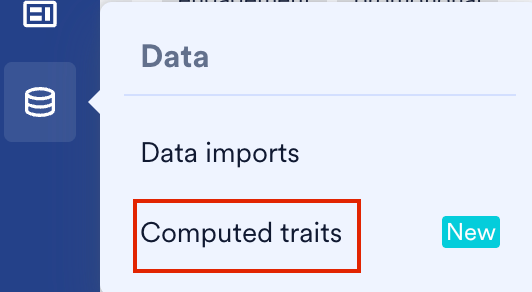
1. On the sidebar menu in MoEngage, hover over the Data menu item  . The **Data** menu appears.
2. Click **Computed traits**.
. The **Data** menu appears.
2. Click **Computed traits**.
 3. Click **+ Create Computed trait**. The **Create computation** dialog box appears.
 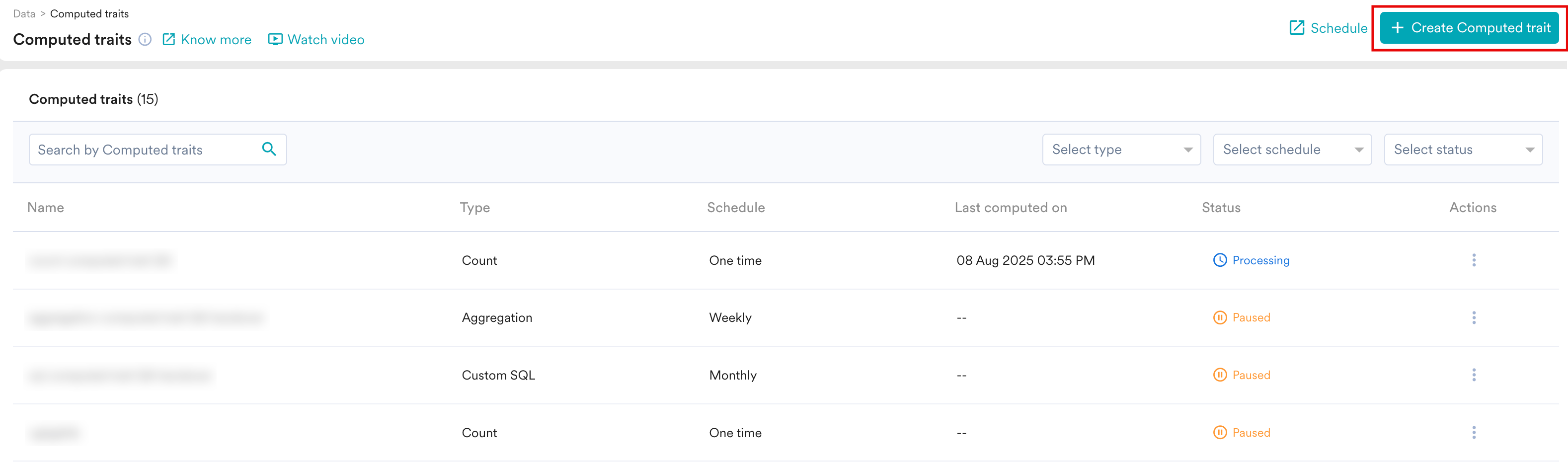 4. Click the desired computation method. You have the following options:
* **Count**
* **Aggregation**
* **First/Last Value**
* **SQL Computation**
For more information on methods of computation and their use cases, refer to [Computed Traits - Overview](/user-guide/data/computed-traits/computed-traits-overview).
The process includes three steps:
* [Step 1: Basic Details](/user-guide/data/computed-traits/create-a-computed-trait)
* [Step 2: Define Computed Trait](/user-guide/data/computed-traits/create-a-computed-trait)
* [Step 3: Scheduling](/user-guide/data/computed-traits/create-a-computed-trait)
## Step 1: Basic Details
First, define the basic details and specify which users the computation applies to.
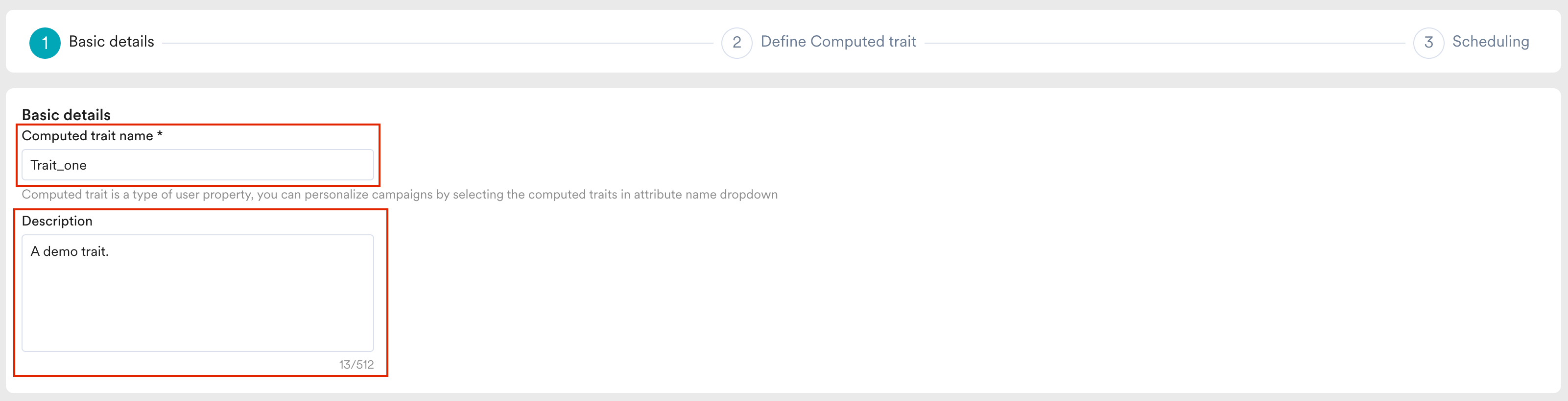
1. **Computed trait name:** Enter a unique name for your computation. This name will appear as a new user attribute across the MoEngage UI (for example, "Lifetime Value").
2. **Description:** Briefly explain what the computation calculates for your team's reference.
4. Click the desired computation method. You have the following options:
* **Count**
* **Aggregation**
* **First/Last Value**
* **SQL Computation**
For more information on methods of computation and their use cases, refer to [Computed Traits - Overview](/user-guide/data/computed-traits/computed-traits-overview).
The process includes three steps:
* [Step 1: Basic Details](/user-guide/data/computed-traits/create-a-computed-trait)
* [Step 2: Define Computed Trait](/user-guide/data/computed-traits/create-a-computed-trait)
* [Step 3: Scheduling](/user-guide/data/computed-traits/create-a-computed-trait)
## Step 1: Basic Details
First, define the basic details and specify which users the computation applies to.
1. **Computed trait name:** Enter a unique name for your computation. This name will appear as a new user attribute across the MoEngage UI (for example, "Lifetime Value").
2. **Description:** Briefly explain what the computation calculates for your team's reference.
 3. **Filter users:** Choose the users to be part of the computation. You can select:
* **All users:** The computation will run for every user in your account.
* **Filter users by:** Define a specific segment of users based on user properties, events, or affinities. For more information, refer to [Create Segments](/user-guide/segment/segment-operations/rule-based-filter-segments).
3. **Filter users:** Choose the users to be part of the computation. You can select:
* **All users:** The computation will run for every user in your account.
* **Filter users by:** Define a specific segment of users based on user properties, events, or affinities. For more information, refer to [Create Segments](/user-guide/segment/segment-operations/rule-based-filter-segments).
 ## Step 2: Define Computed trait
Next, define the logic for how your trait will be calculated.
1. **Select the Type:** In the **Type** section, choose the desired type of computation. You can create traits based on:
## Step 2: Define Computed trait
Next, define the logic for how your trait will be calculated.
1. **Select the Type:** In the **Type** section, choose the desired type of computation. You can create traits based on:
 * **Count:** Count the number of times users performed an action.
* **Aggregation:** Aggregate values of an event attribute (for example, Total order value).
* **First/Last Value:** Identify the first or last value of an event attribute.
* **SQL Computation:** Write a custom SQL query for complex calculations.
2. **Set up the Configuration:** In the **Configuration** section, based on the type of computation that you selected, do the following:
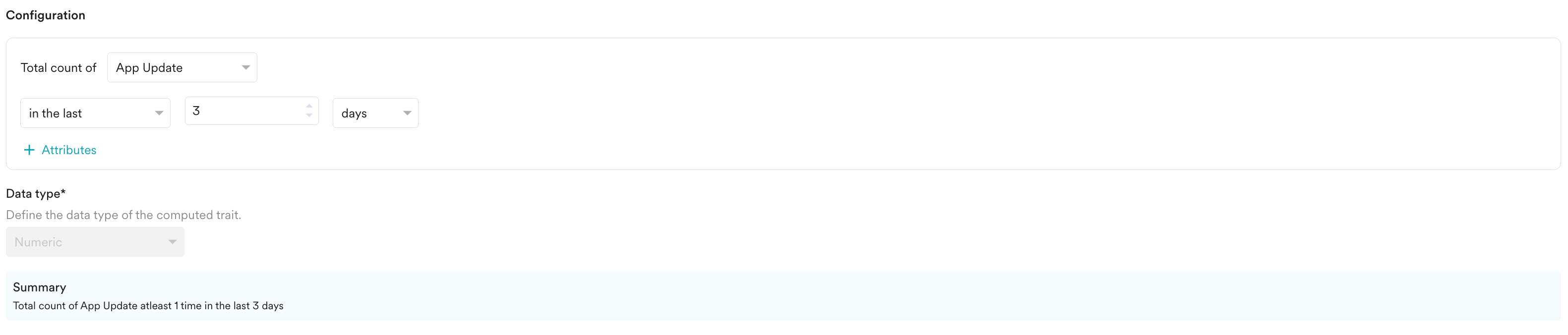
* For a **Count** computation, select the event to count, define the time period, and optionally add attribute filters.
* **Count:** Count the number of times users performed an action.
* **Aggregation:** Aggregate values of an event attribute (for example, Total order value).
* **First/Last Value:** Identify the first or last value of an event attribute.
* **SQL Computation:** Write a custom SQL query for complex calculations.
2. **Set up the Configuration:** In the **Configuration** section, based on the type of computation that you selected, do the following:
* For a **Count** computation, select the event to count, define the time period, and optionally add attribute filters.
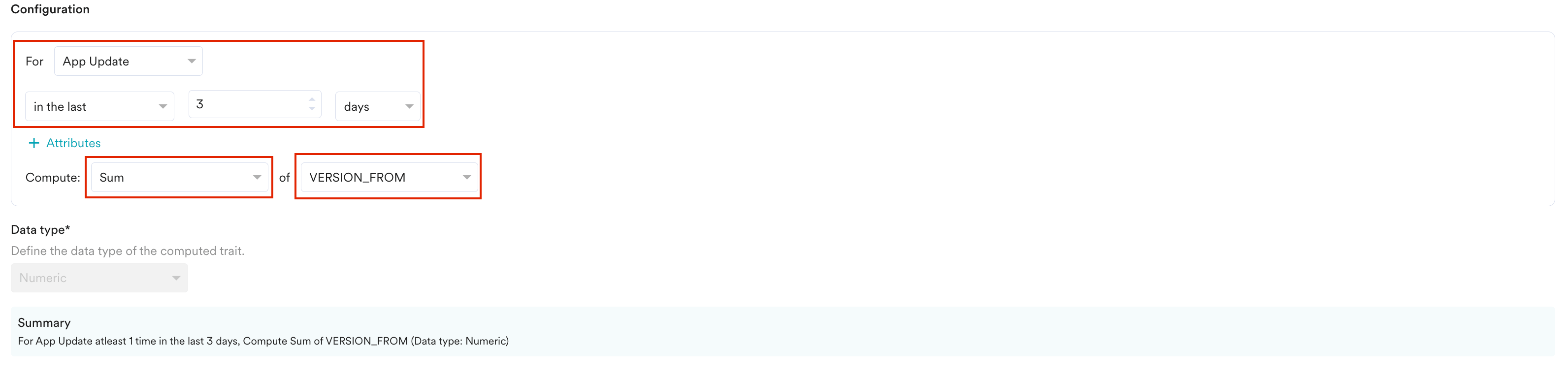
 * For an **Aggregation** computation, select the event and the time period. Then, choose the aggregation function. The following functions are available: **Sum, Min, Max, Average, Median, Distinct count,** and **True if event exists**. After selecting the function, select the event attribute you want to compute.
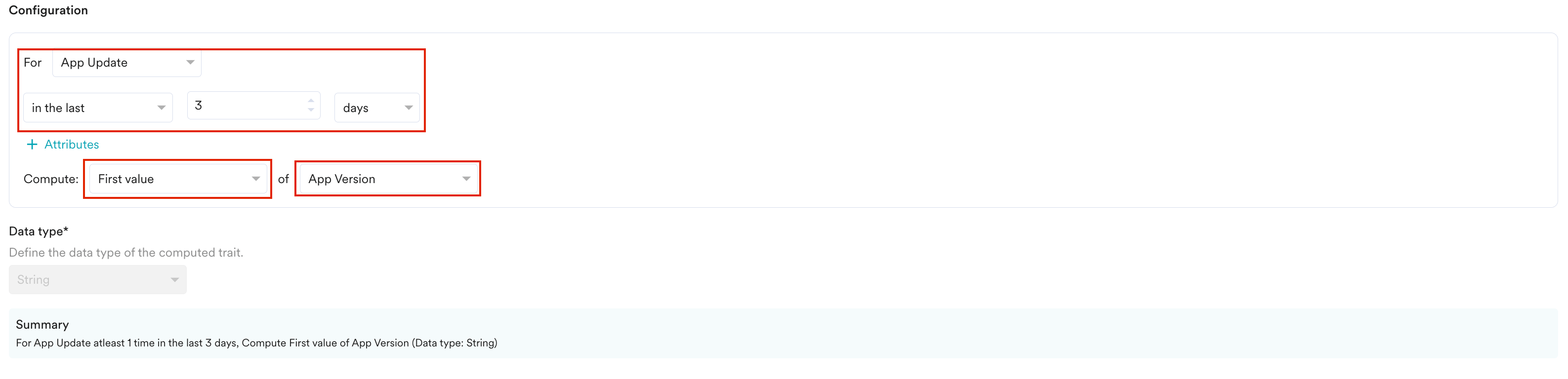
 * For a **First/Last Value** computation, select the event and time period. Then, choose whether to compute the **First value** or **Last value** of a specific event attribute.
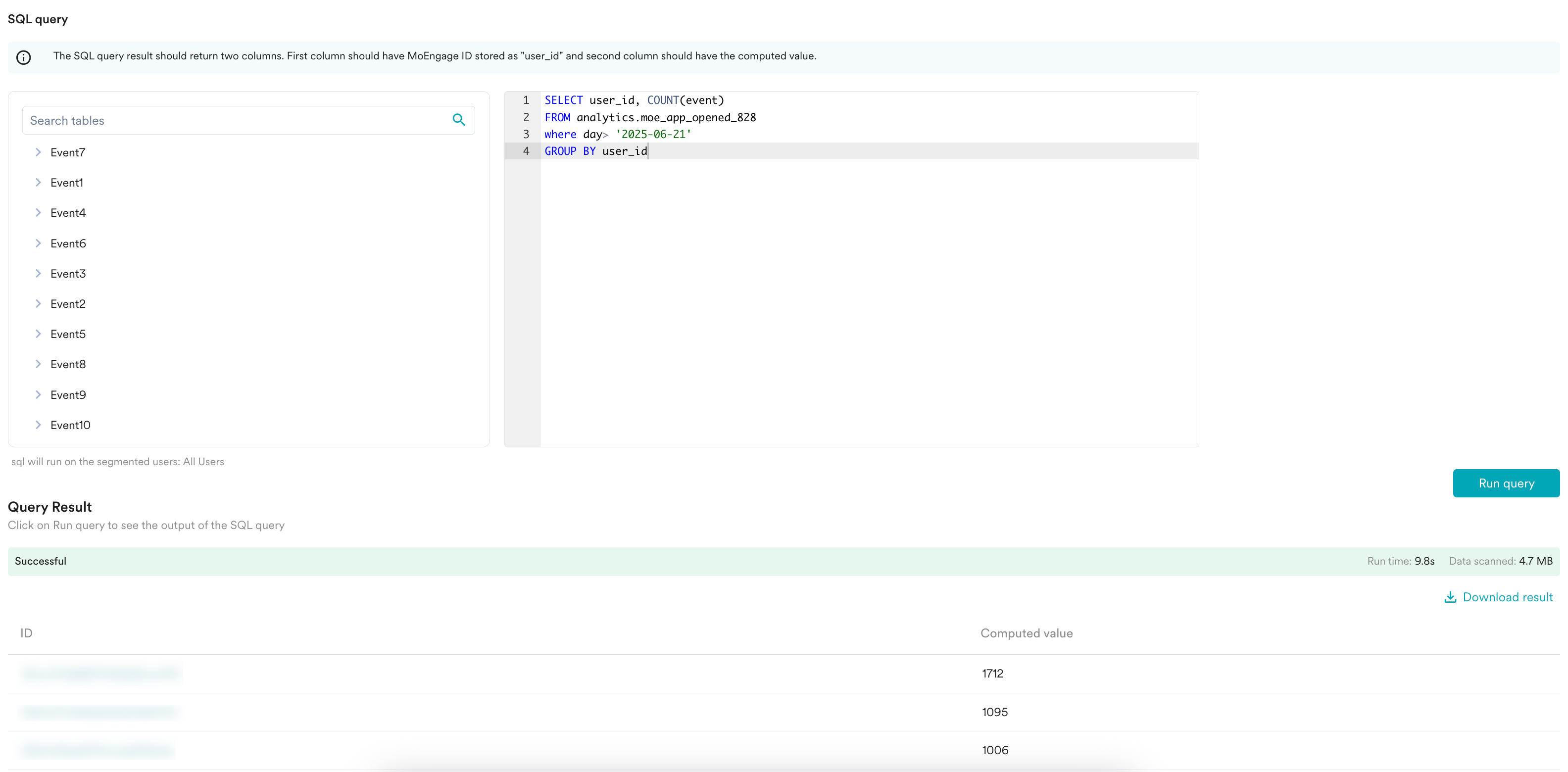
 * For a **SQL Computation**, in the SQL editor, write your query. You can use the left section to browse and select user and event tables. Your query must return two columns: the MoEngage ID and the computed value for your new trait.
 3. **Define the Data type:** Choose the data type of the computed trait's output (for example, **Numerical**, **String**, **Boolean**). Defining a data type is only permitted when you select **SQL** as the computation type. For other computation types, the data type is auto-populated.
4. **Review the Summary:** A plain-language summary of your configuration will be displayed for confirmation.
3. **Define the Data type:** Choose the data type of the computed trait's output (for example, **Numerical**, **String**, **Boolean**). Defining a data type is only permitted when you select **SQL** as the computation type. For other computation types, the data type is auto-populated.
4. **Review the Summary:** A plain-language summary of your configuration will be displayed for confirmation.
 5. **Preview the trait:** Before navigating to the next step, you must test the logic. Perform these steps to preview:
1. In the **Preview Computed Trait** section, select a preview type.
* **A specific user**: Test the configuration on a specific user ID.
* **A set of 10 random users**: Test the configuration on a set of ten random users.
2. Click **Preview**. A table is generated with ID and computed value.
5. **Preview the trait:** Before navigating to the next step, you must test the logic. Perform these steps to preview:
1. In the **Preview Computed Trait** section, select a preview type.
* **A specific user**: Test the configuration on a specific user ID.
* **A set of 10 random users**: Test the configuration on a set of ten random users.
2. Click **Preview**. A table is generated with ID and computed value.
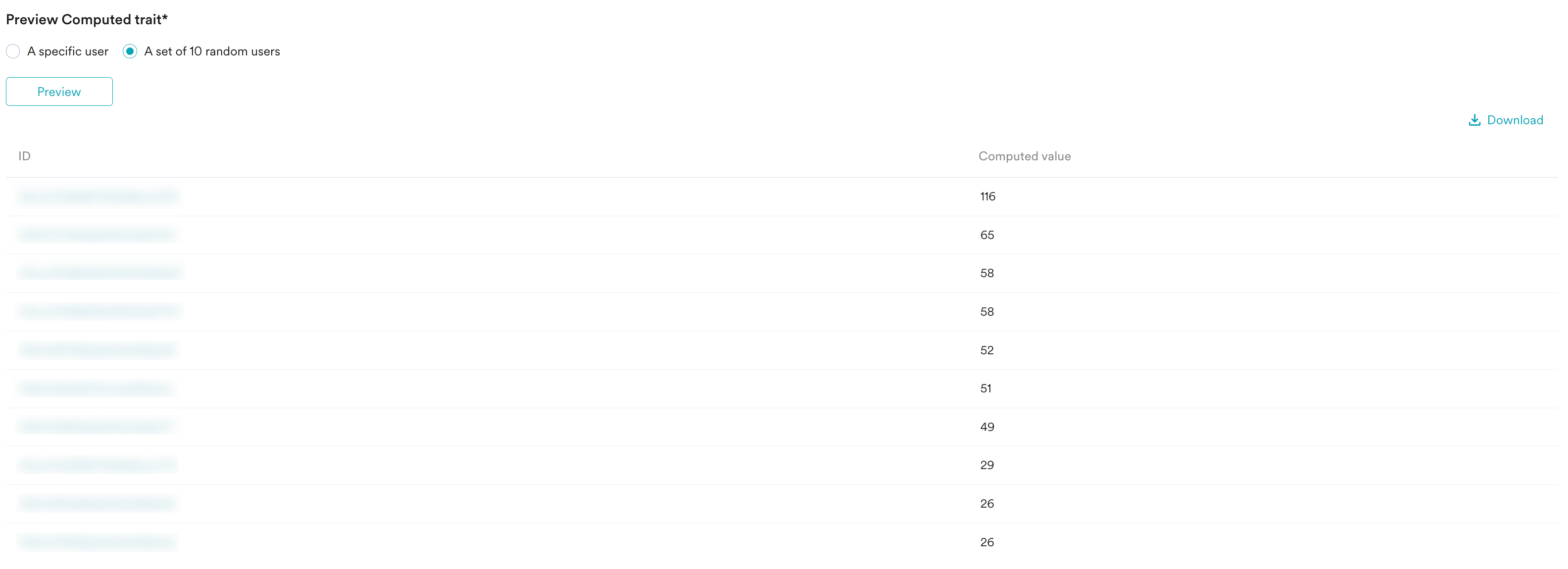 You can export this preview. To do so, click **Download**.
## Step 3: Scheduling
Finally, decide how and when your computation should run. Perform the following steps to schedule and publish your computed trait.
1. In the **Schedule section**, select when the computation will execute.
* In the **One-time** section, select **Run at next schedule** to run the computation once at the next scheduled time.\
or
* In the **Periodic section**, select the computation to run repeatedly on a **Weekly** or **Monthly** basis to keep the user attribute updated. You can adjust the schedule from the **Settings** page.
You can export this preview. To do so, click **Download**.
## Step 3: Scheduling
Finally, decide how and when your computation should run. Perform the following steps to schedule and publish your computed trait.
1. In the **Schedule section**, select when the computation will execute.
* In the **One-time** section, select **Run at next schedule** to run the computation once at the next scheduled time.\
or
* In the **Periodic section**, select the computation to run repeatedly on a **Weekly** or **Monthly** basis to keep the user attribute updated. You can adjust the schedule from the **Settings** page.
 2. For **Periodic** computations, choose how to handle existing values for users. Select one of the following in the **Computation action**:
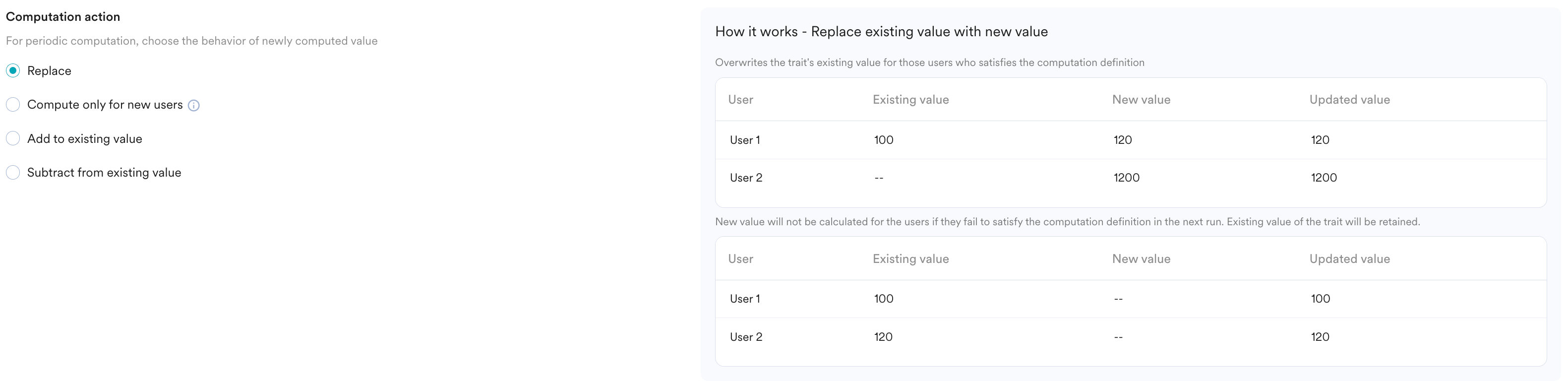 * **Replace:** Overwrites the old value with the new one for users who meet the computation definition. If a user no longer meets the definition, their existing value is retained.
* **Compute only for new users:** Calculates the value only for users who do not already have a value for this trait.
* **Add to existing value:** Adds the newly computed value to the user's current value.
* **Subtract from existing value:** Subtracts the newly computed value from the user's current value.
Once you are done, click **Publish** to create your computed trait.
# Manage Your Computations
The Computed Traits page lists all the computations you have created.
### Navigation
1. After creating the computed trait, navigate to **Data** > **Computed Traits**. The Computed traits page appears.
* **Replace:** Overwrites the old value with the new one for users who meet the computation definition. If a user no longer meets the definition, their existing value is retained.
* **Compute only for new users:** Calculates the value only for users who do not already have a value for this trait.
* **Add to existing value:** Adds the newly computed value to the user's current value.
* **Subtract from existing value:** Subtracts the newly computed value from the user's current value.
Once you are done, click **Publish** to create your computed trait.
# Manage Your Computations
The Computed Traits page lists all the computations you have created.
### Navigation
1. After creating the computed trait, navigate to **Data** > **Computed Traits**. The Computed traits page appears.
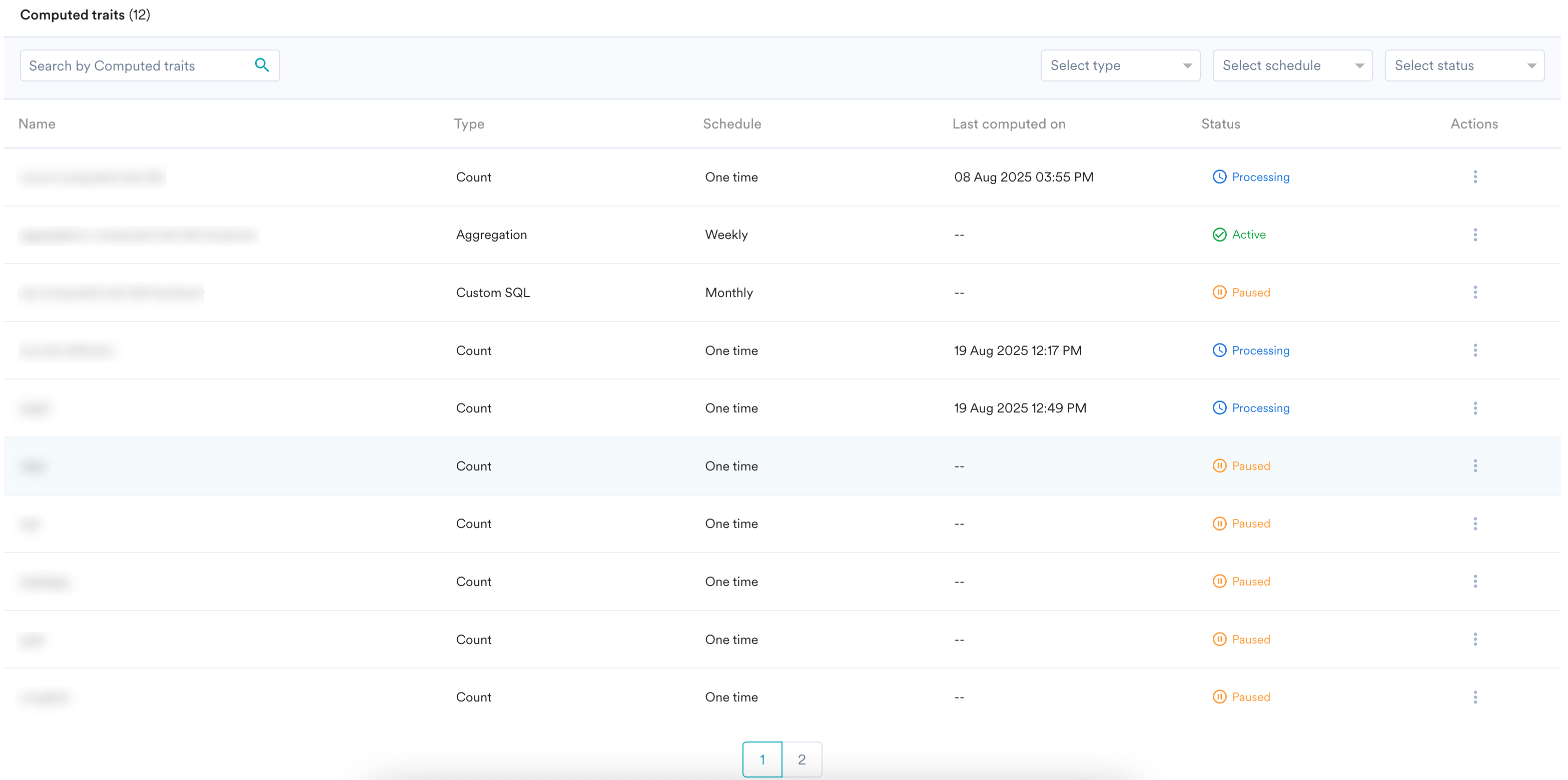 On this page, you can:
* Use the search box to search for a computed trait.
* See information like **Type**, **Schedule**, and **Status**.
* Use the filters in the header to filter the created computed traits by type, schedule, or status.
2. For a computed trait, you can edit, pause, or view the computation. To do so, click the ellipsis icon against a name and select the desired option.
On this page, you can:
* Use the search box to search for a computed trait.
* See information like **Type**, **Schedule**, and **Status**.
* Use the filters in the header to filter the created computed traits by type, schedule, or status.
2. For a computed trait, you can edit, pause, or view the computation. To do so, click the ellipsis icon against a name and select the desired option.
 * * **View:** See the detailed configuration of a computation on a new page. Alternatively, you can access the detail page by clicking the trait name.
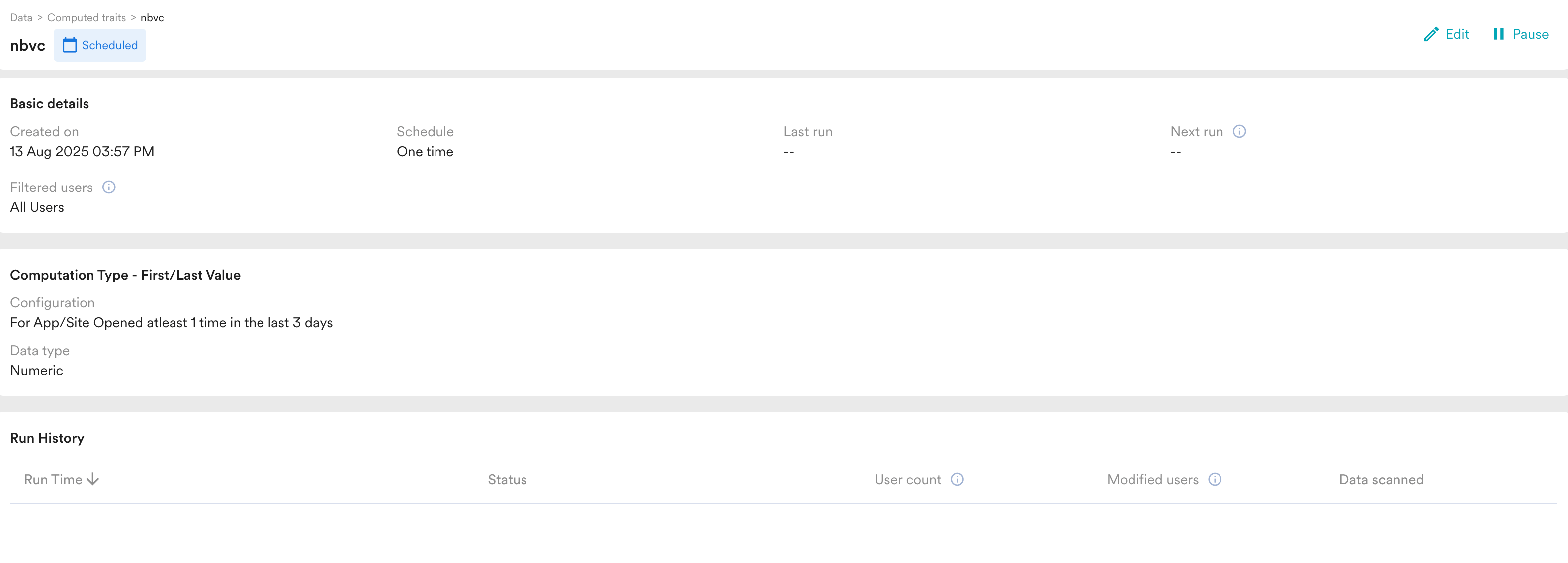 The detail page contains the following information:
* **Basic details**: This section contains information on when the computed trait was created, the scheduled details, last run and next run timestamps, and the filtered users' details.
* **Computation type**: This section contains information about the type of computation and its configuration.
* **Run history**: This section provides a detailed view of the computation history.
* **Pause/Resume**: Pause the computation, or resume a paused computation.
* **Edit:** Modify a computation. You can only make changes before its first scheduled run. After the first run, only the schedule can be changed.
You can have a maximum of five active computations at any given time. This includes computations with **Scheduled**, **Processing**, or **Active** statuses.
# Use Your Computed Traits
Once your computation has run successfully, the new trait will be available as a standard user attribute throughout MoEngage.
* **In Segmentation:** In the segment creator, go to **User Property**, find your new computed trait by name, and use it to build your segment.
* **In campaign personalization:** Use Jinja to insert the trait's value directly into your messages. For example: `Hi {{UserAttribute['First Name']}}, you have {{UserAttribute['Loyalty Points']}} points!`. Alternatively, use @ to add the attribute to your content.
* **In Flows:** Use the computed trait as a condition to guide users down different paths in a flow.
The detail page contains the following information:
* **Basic details**: This section contains information on when the computed trait was created, the scheduled details, last run and next run timestamps, and the filtered users' details.
* **Computation type**: This section contains information about the type of computation and its configuration.
* **Run history**: This section provides a detailed view of the computation history.
* **Pause/Resume**: Pause the computation, or resume a paused computation.
* **Edit:** Modify a computation. You can only make changes before its first scheduled run. After the first run, only the schedule can be changed.
You can have a maximum of five active computations at any given time. This includes computations with **Scheduled**, **Processing**, or **Active** statuses.
# Use Your Computed Traits
Once your computation has run successfully, the new trait will be available as a standard user attribute throughout MoEngage.
* **In Segmentation:** In the segment creator, go to **User Property**, find your new computed trait by name, and use it to build your segment.
* **In campaign personalization:** Use Jinja to insert the trait's value directly into your messages. For example: `Hi {{UserAttribute['First Name']}}, you have {{UserAttribute['Loyalty Points']}} points!`. Alternatively, use @ to add the attribute to your content.
* **In Flows:** Use the computed trait as a condition to guide users down different paths in a flow.